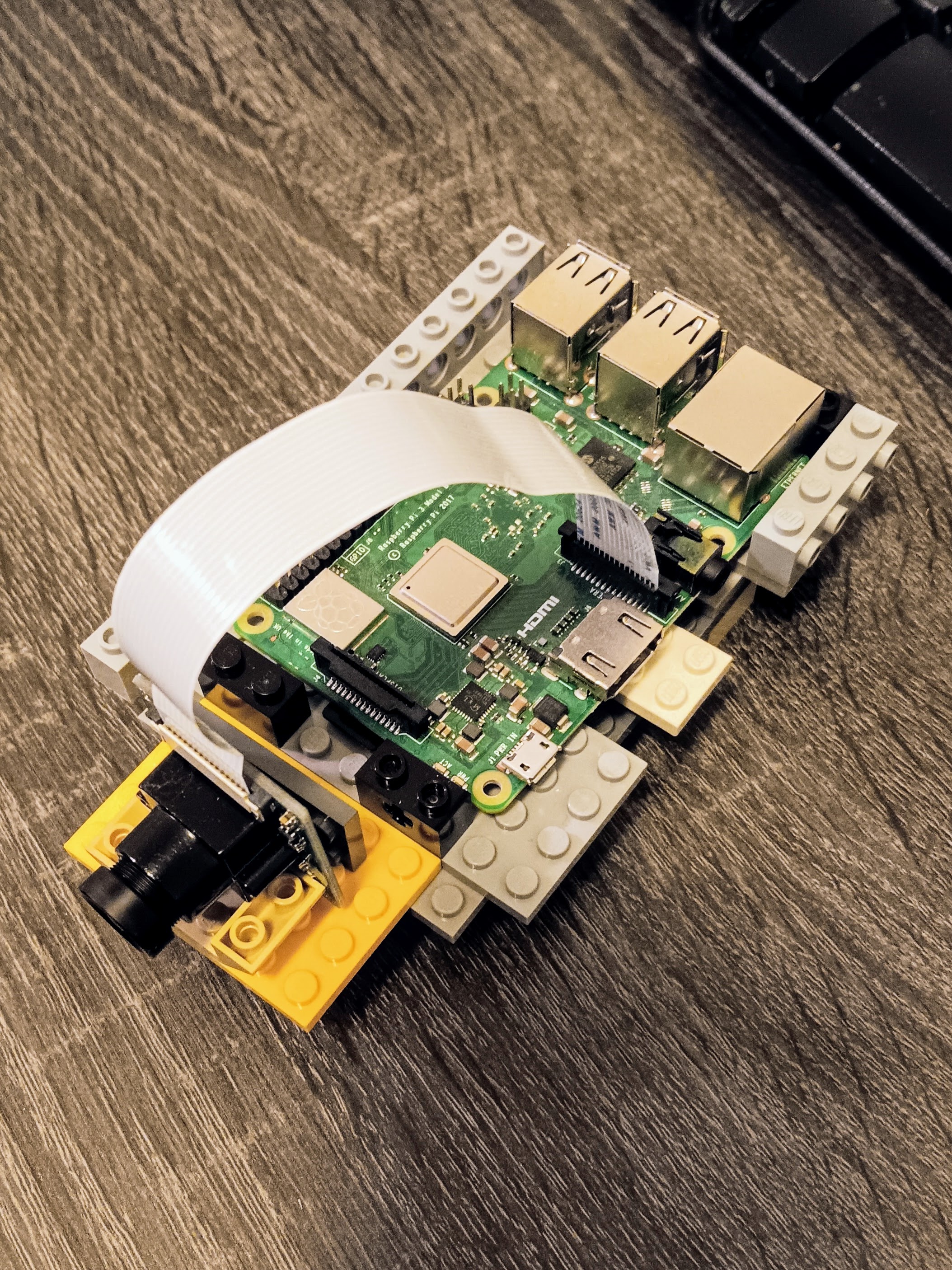
Basic Camera Test
rpicam-still is a command-line that comes with the libcamera-based Raspberry Pi camera stack, specifically when using the libcamera-appssuite. It is part of the newer camera system introduced for Raspberry Pi OS (Bullseye and later).
Type the following command-line prompt to capture your first image.
> rpicam-still -o test.jpg
The command opens a preview window for a few seconds, saves the picture in a file called test.jpg, followed by a command line message saying: Still capture image received.
There are related tools that you can play with:
rpicam-still |
Capture still photos |
rpicam-vid |
Record a video |
rpicam-preview |
Preview camera (no file) |
rpicam-jpeg |
Capture JPEG images |
picamera2 |
Python library for libcamera |
Write A Short Python Script
This part demonstrates a simple Python script that captures a single image, where the code:
- Imports necessary components
- Initializes the camera
- Gets camera information
- Configures the camera for a still image capture
- Starts the camera
- Waits for the camera to adjust
- Create the output directory
- Generate the filename with a timestamp
- Capture the photo
- Get the file size for verfication
- Stop the camera
- Handle exceptions
#!/usr/bin/env python3
"""
Basic Raspberry Pi Camera Test Script
This script verifies camera functionality and capture
"""

import time
from picamera2 import Picamera2
from libcamera import controls
import os

def main():
    print("Starting Raspberry Pi Camera Test...")

    try:
        # Initialize the camera
        picam2 = Picamera2()
        print(". The camera initialized successfully.")

        # Get camera information
        camera_info = picam2.sensor_modes
        print(". Camera detected: {0} sensor modes available.".format(len(camera_info)))

        # Configure camera for still capture
        # using a standard configuration for photos
        config = picam2.create_still_configuration(
            main={"size": (1920, 1080)},  # Full HD configuration
            lores={"size": (640, 480)},   # Lower resolution
            display="lores"
        )
        picam2.configure(config)
        print(". Camera configured for still capture.")

        # Start the camera
        picam2.start()
        print(". Camera started")

        # Let the camera adjust to lighting conditions
        print(". Allowing the camera to adjust to ambient conditions for 2 seconds.")
        time.sleep(2)

        # Create output directory, if it doesn't exist
        output_dir = "camera_test_photos"
        if not os.path.exists(output_dir):
            os.makedirs(output_dir)
            print(". Created output directory: {}.".format(output_dir))

        # Generate filename with timestamp
        timestamp = time.strftime("%Y%m%d_%H%M%S")
        filename = f"{output_dir}/test_photo_{timestamp}.jpg"

        # Capture the photo
        print(". Capturing the photo...")
        picam2.capture_file(filename)
        print(". Photo captured successfully: {}".format(filename))

        # Get file size for verification
        file_size = os.path.getsize(filename)
        print(". The file size is: {}".format(file_size))

        # Stop the camera
        picam2.stop()
        print(". Camera stopped")

        print("\n" + "=" * 30)
        print("Camera test completed with success")
        print("=" * 30)
        print("Pictured saved to {}".format(filename))
        print("You can now view the photo.")

    except Exception as e:
        print("x Error during camera test: {}".format(str(e)))
        print("\nTroubleshooting tips:")
        print("1. Check the camera cable connection.")
        print("2. Ensure that the camera has been enabled.")
        print("3. Try running sudo apt install python3-picamera2.")
        print("4. Reboot the RPI, if necessary.")
        return False
    return True

if __name__ == "__main__":
    main()
Once you have the code written up:
- Save the script as
camera_test.py
- Make it executable by typing
sudo chmod +x camera_test.py on the command line
- Run it with:
python3 camera_test.py
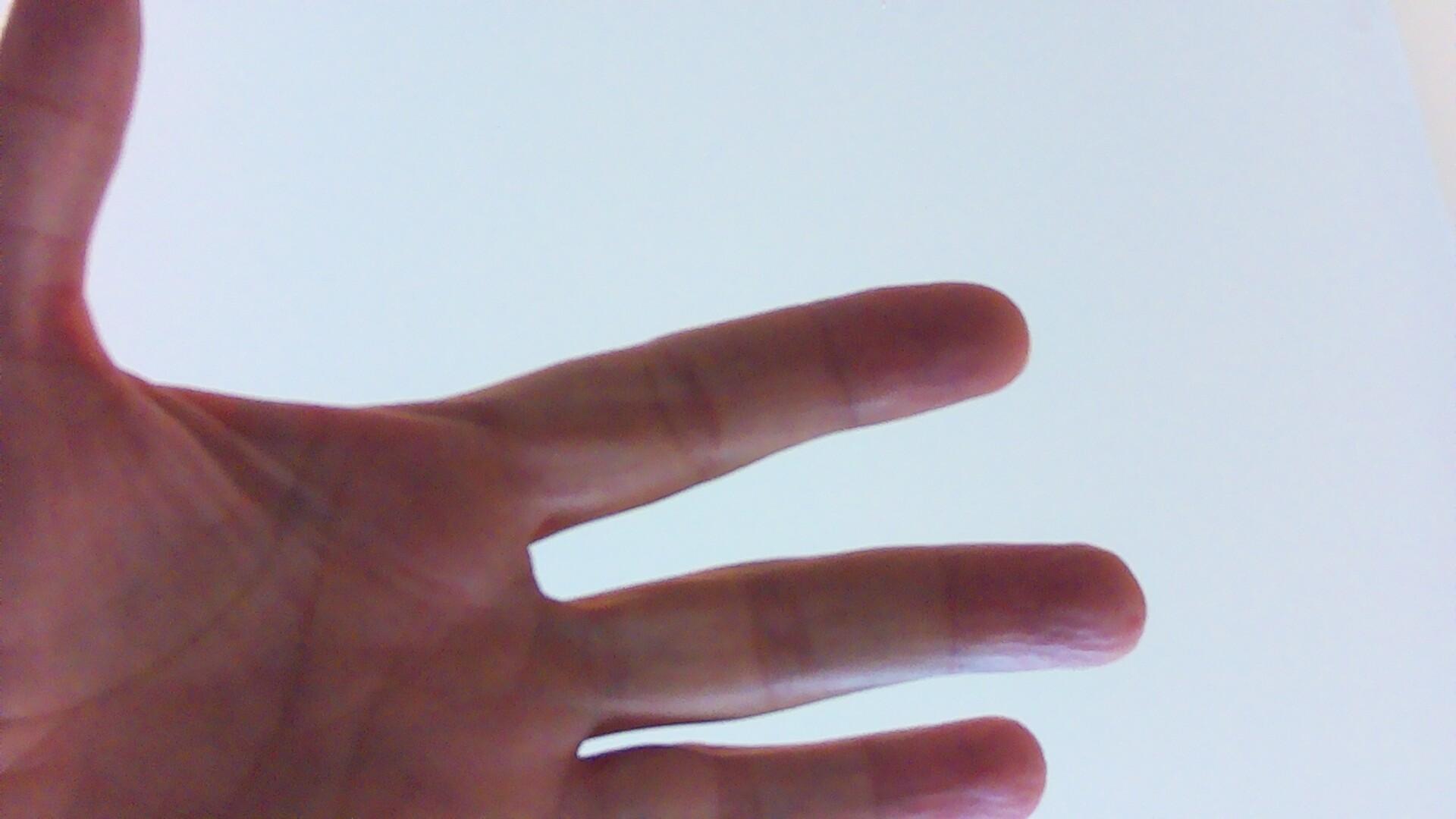
You can view this picture using the image viewer on the RPI. This is what I got:
Write A Script With More Advanced Features
In this code I demonstrate a more complex python script, which enables you to perform more functions with the camera:
- Multiple capture modes: single, burst, preview, info and list
- Configure resolution and quality
- Burst mode: capture multiple photos in sequence
- Preview mode: see what you're capturing (if you have a display)
- Photo listing: view all captured photos
- Command-line arguments for easy customization
#!/usr/bin/env python3
"""
Advanced Raspberry Pi Photo Capture Script
Provides multiple capture modes and image settings
"""

import time
import os
import argparse
from picamera2 import Picamera2
from picamera2.previews import Preview
from libcamera import controls
import json

class PhotoCapture:
    def __init__(self):
        self.picam2 = Picamera2()
        self.output_dir = "photos"
        self.ensure_output_dir()

    def ensure_output_dir(self):
        """Create output directory, if it doesn't exist."""
        if not os.path.exists(self.output_dir):
            os.makedirs(self.output_dir)
            print(".. Created output directory: {0}".format(self.output_dir))

    def get_camera_info(self):
        """Display camera information"""
        print("Camera Information")
        print("-"*30)
        sensor_modes = self.picam2.sensor_modes
        print("Available sensor modes: {}".format(len(sensor_modes)))

        for i, mode in enumerate(sensor_modes):
            print(f"Mode {i}: {mode['size']} @ {mode.get('fps', 'N/A')} fps")

        print()

    def configure_camera(self, resolution=(1920, 1080), quality=95):
        """Configure camera with specified settings"""
        config = self.picam2.create_still_configuration(
            main={"size": resolution},
            lores={"size": (640, 480)},
            display="lores"
        )
        self.picam2.configure(config)
        print("Camera configured: {0} x {1}, Quality {2}".format(resolution[0], resolution[1], quality))
        return config

    def capture_single_photo(self, filename=None, resolution=(1920, 1080), quality=95):
        """Capture single photo with specified settings"""
        if filename is None:
            timestamp = time.strftime("%Y%m%d_%H%M%S")
            filename = f"{self.output_dir}/photo_{timestamp}.jpg"
        else:
            filename = f"{self.output_dir}/{filename}"

        # Configure camera
        config = self.configure_camera(resolution, quality)

        # Start camera
        self.picam2.start()

        # Allow camera to adjust to ambient settings
        print("Adjusting camera to ambient light settings.")
        time.sleep(2)

        # Capture photo
        print("Capturing single photo {0}".format(filename))
        self.picam2.capture_file(filename)

        # Stop camera
        self.picam2.stop()

        # Verify capture
        if os.path.exists(filename):
            file_size = os.path.getsize(filename)
            print("Photo captured successfully!!!")
            print(f". File: {filename}")
            print(f". Size: {file_size / 1024:.1f} KB")
            return filename
        else:
            print("x Photo capture failed.")
            return None

    def capture_burst(self, count=5, interval=1, resolution=(1920, 1080)):
        """Capture multiple photos in sequence"""
        print("Starting burst capture: {0} photos, {1}s intervals".format(count, interval))

        config = self.configure_camera(resolution)
        self.picam2.start()

        # Allow initial adjustment
        time.sleep(2)

        captured_files = []

        for i in range(count):
            timestamp = time.strftime("%Y%m%d_%H%M%S")
            filename = f"{self.output_dir}/burst_{timestamp}_{i+1:02d}.jpg"

            print("Capturing photo {0}/{1}: {2}".format(i+1, count, filename))
            self.picam2.capture_file(filename)
            captured_files.append(filename)

            if i < count -1:  # Don't wait after the last photo
                time.sleep(interval)

        self.picam2.stop()

        print("Burst sequence completed {} photos".format(len(captured_files)))
        return captured_files

    def capture_with_preview(self, duration=5, resolution=(1920, 1080)):
        """Capture photo with preview window (if display available)"""
        timestamp = time.strftime("%Y%m%d_%H%M%S")
        filename = f"{self.output_dir}/preview_{timestamp}.jpg"

        # Configure the camera with preview enabled
        config = self.picam2.create_preview_configuration(
            main={"size": resolution},
            lores={"size": (640, 480)},
            display="lores"
        )
        self.picam2.configure(config)

        # Start camera with preview
        self.picam2.start_preview(Preview.QTGL)  # this should open a X11/OpenGL preview window
        self.picam2.start()

        print("Preview active for {0} seconds...".format(duration))
        print("Press Ctrl+C to capture early or wait for automatic capture.")

        try:
            time.sleep(duration)
            print(". Capturing photo...")
            self.picam2.capture_file(filename)
            print(". Photo captured {0}".format(filename))
        except KeyboardInterrupt:
            print("\nCapturing photo now...")
            self.picam2.capture_file(filename)
            print("^ Photo captured {0}".format(filename))
        finally:
            self.picam2.stop_preview()
            self.picam2.stop()

        return filename

    def list_photos(self):
        """List all captured photos"""
        photos = [f for f in os.listdir(self.output_dir) if f.endswith('.jpg')]
        photos.sort()

        print("Photos in {0}:".format(self.output_dir))
        print("-" * 40)

        if not photos:
            print("No photos found.")
            return

        for photo in photos:
            filepath = os.path.join(self.output_dir, photo)
            file_size = os.path.getsize(filepath)
            mod_time = time.ctime(os.path.getmtime(filepath))
            print(f"{photo:<30} {file_size/1024:>8.1f} KB {mod_time}")

def main():
    parser = argparse.ArgumentParser(description="Advanced RPI Photo Capture")
    parser.add_argument('--mode', choices=['single', 'burst', 'preview', 'info', 'list'],
                default='single', help='Capture mode')
    parser.add_argument('--count', type=int, default=5, help='Number of photos for burst mode')
    parser.add_argument('--interval', type=float, default=1.0, help='Interval between burst photos')
    parser.add_argument('--resolution', default='1920x1080', help='Photo resolution')
    parser.add_argument('--quality', type=int, default=95, help='JPEG quality (1-100)')
    parser.add_argument('--duration', type=int, default=5, help='Preview duration in seconds')
    parser.add_argument('--output', help='Output filename (single mode only)')

    args = parser.parse_args()

    # parse resolution
    try:
        width, height = map(int, args.resolution.split('x'))
        resolution = (width, height)
    except:
        print("Invalid resolution format. Use WxH (e.g., 1920x1080)")
        return

    # Create capture object
    capture = PhotoCapture()

    try:
        if args.mode == 'info':
            capture.get_camera_info()
        elif args.mode == 'list':
            capture.list_photos()
        elif args.mode == 'single':
            capture.capture_single_photo(args.output, resolution, args.quality)
        elif args.mode == 'burst':
            capture.capture_burst(args.count, args.interval, resolution)
        elif args.mode == 'preview':
            capture.capture_with_preview(args.duration, resolution)

    except Exception as e:
        print("Error {0}".format(str(e)))
        return

    print("\nDone")

if __name__ == "__main__":
    main()
When ready:
- Save the script as
camera_advanced.py
- Make it executable with:
sudo chmod +x camera_advanced.py
- Run it with:
python3 camera_advanced.py
You can try different arguments to test this Python script. For example:
Basic single photo:
> python3 camera_advanced.py
High resolution photo with custom name:
python3 camera_advanced.py --mode single --resolution 2592x1944 --output my_photo.jpg
Burst mode: 10 photos, 0,5 seconds apart:
python3 camera_advanced.py --mode burst --count 10 --interval 0.5
Preview mode (5 seconds to compose the shot):
python3 camera_advanced.py --mode preview --duration 5
List all captured photos:
python3 camera_advanced.py --mode list
Get camera information:
python3 camera_advanced.py --mode info